

WiFi Fused Spur Timer Switch: Hints & Tips
Here, we answer some FAQs and share some useful hints and tips to help guide you through the initial set-up and operation of the timer switch.
If you experience any issues which are not listed below, please let us know so we can try and help resolve them for you.
What back boxes are compatible with this fused spur timer switch?
We offer both a surface mounted back box and a dry lining back box with spacer depending on your requirements. Both are fully compatible with our fused spur timer switches.
We would advise against using a metal back box as these can interfere with the wifi signal.
Will the device work without a neutral?
No, please note that the device needs a live and neutral from the power supply and a live and neutral to the load to function properly.
How do I get the wifi light to start flashing?
Ensure there is power to the timer. Press and hold the power button for approximately 5 seconds until the wifi light begins to flash. The device will then enter ‘pairing mode’.
How do I get the timer to connect to wifi?
Ensure Bluetooth is enabled on your smart device and that notification permissions are enabled/allowed. This allows the app to quickly ‘discover’ the timer.
The timer is connected to the network but doesn’t turn the power on.
Ensure that the 2-pole isolation switch on the front of the timer is set to the ON position.
Why is the timer not responding to any functions?
Check that the 13 amp fuse is working. Use a flat edge screwdriver or similar implement to remove the fuse cover and replace the fuse if required.
Why is the timer not turning on and off at the scheduled times?
In the app, ensure the correct days of the week have been selected. Multiple days or single days can be set for each programmed ON and OFF time.
When setting the timer to come on, ensure that the scheduled time is displaying ON.
When setting the timer to switch off, ensure that the scheduled time is displaying OFF.
Does the timer work on an Economy 7 system?
The timer is compatible with an Economy 7 system. Note that there is no in-built battery in the WiFi Switched Fused Spur so the timer will lose network connection when the power is turned off. However, the device will reconnect to the network automatically once power is restored.
What happens to the timer if the wifi signal drops out?
If the wifi signal drops out, the timer's operating status will remain unchanged. For example, if the timer was ON, it will remain ON, and vice versa.
How can I manually operate the timer if the wifi signal has dropped out?
To operate the timer when the wifi signal is lost, simply press the power
button on the front of the timer to switch the load ON and OFF manually. The timer will remember the network details and will reconnect automatically once the wifi signal returns.
How does the timer behave when power is restored after a power cut?
By default, when power is restored after a power cut, the switch will automatically reconnect to the wifi network but will restart in power OFF mode for safety.
Please note that while the power is OFF the app screen may not refresh and may still show that the power is ON. However, this will auto-adjust as soon as power is restored to show the device is OFF. The device will then turn ON again at its next programmed ON time.
If you want to change the behaviour of the switch after a power cut, select the device in the app, go to 'settings' and select 'relay status'. You can then choose whether the device remains OFF, switches ON, or remembers last status once power is restored.
How do I link the device to Google Assistant and/or Amazon Alexa?
Once installed in the Tuya app, simply open the device in the app, select the pen in the top right-hand corner, and select ‘Third-party Control’. Follow the on-screen prompts to complete the set-up.
How do I share access to the wifi timer?
To share access with an additional user, please follow the steps below:
- Install the Tuya app on both smart devices
- Create two separate accounts, one for each smart device (ensure ‘push’ notifications from Tuya is enabled)
- Pair the wifi timer to one smart device as usual (ensure Bluetooth is enabled) – see our video on chosry.com/videos for a demonstration if required
- Once paired, open the device on the app and click on the pen in the top right hand corner
- Scroll down the screen and select ‘Share device’
- On the next screen, select ‘Add sharing’
- On the next screen, select ‘Share with Account Tuya Smart’
- On the next screen, select region as ‘United Kingdom’
- Under ‘Account’, enter the email address used to set up the additional user account
- Click ‘Done’
- The additional user will receive a ‘push’ notification from Tuya on their smart device to confirm the set-up has been successful
- Open the app on either smart device and access the wifi timer as required.
I am travelling to a destination in a different time zone. Will the app schedule operate as per my home time zone or overseas time zone?
The wifi timer will operate using the time zone on the network when it was first configured. For example, if the timer is set up on the app in the UK, then the schedule will run to UK time wherever you may travel to in the world (even if your smart device uses the overseas time zone).
Will the programme schedule still work if my smart device is turned off?
Yes, the programme schedule uses a cloud-based system so will continue to operate as normal even if the smart device is powered off.
The wifi timer is not working as expected.
Please check the following:
1. The maximum operating temperature of the timer is set at 40° Celsius. If the ambient temperature exceeds this level, the integrated safety device may have been automatically activated to prevent the timer from overheating. If this happens, some functionality may be temporarily disabled. (To avoid exposure to excessive temperatures, locate the timer switch away from direct sunlight. If the timer is stored in a cupboard, ensure there is adequate ventilation.)
2. The maximum load is 3kW (3000 watts). If this level is exceeded (even temporarily), the integrated safety device may have been automatically activated to protect the timer's circuit board. If this happens, some functionality may be temporarily disabled.
To reset the device, remove the power for a period of 12-24hrs to allow sufficient time for the timer to return to its usual operation.
3. Ensure the device is not installed in a metal back box as these can interfere with the wifi signal.
If you are having trouble connecting the wifi timer to the network, please check the following:
1. Ensure Bluetooth is enabled on your smart device
2. Ensure all app notification permissions are enabled/allowed
- In the app, select ‘me’ (in the bottom right hand corner), select the hexagon shape in the top right hand corner to go to settings, scroll down and select ‘app notification’, set ‘system notification’ to ‘ON’
3. Ensure the blue wifi light is flashing on the wifi timer
- If the light isn’t flashing, press and hold the wifi button for approx. 5 seconds until the blue light begins to flash
4. When prompted in the app, ensure you enter the password correctly
- Note that this is the wifi network password and not your Tuya account password
- If you enter the incorrect password, the pairing process will time out and fail but it won’t tell you that the password was wrong
5. Ensure the wifi timer is not installed in a metal back box
- Metal boxes can interfere with the wifi signal
6. Check the fuse is working
7. Disable your 5G network as the device requires 2G for initial set-up
- If you have a dual band router, disable the 5G network for the initial set-up
- If you are using wifi boosters or extenders in your home, temporarily switch these off during the initial set-up
8. Clear the cache
- In the app, select ‘me’ (in the bottom right hand corner), select the hexagon shape in the top right hand corner to go to settings, scroll down and select ‘clear cache’ then restart your device.
9. Ensure the wifi timer is not located near to another wifi timer
- As the wifi timers operate on the same frequency, two or more timers in close proximity to each other may cause interference/interruption to the wifi connection.
10. If the device is not pairing with the Tuya app, try pairing to the Smart Life app instead.
The round pairing button has got stuck
The button can usually be prised back up using a thin instrument. If this does not work, please contact us for further assistance.
The blue wifi light is on but the device is not connected to the app
To resolve this, please do a factory reset by following the steps below:
1. Open the app (Tuya or Smart Life) and select the timer
2. Go to settings (look for the pen in the top right hand corner)
3. Scroll down the page to ‘remove device’
4. Select this option and then select ‘remove device and wipe data’.
5. Then restart your smart device (to remove the cache) and reinstall the timer.
Can the brightness of the LEDs be adjusted?
No, the brightness of the LEDs cannot currently be changed. However, this is something we are looking at introducing in the future.
The wiring diagram for the timer:
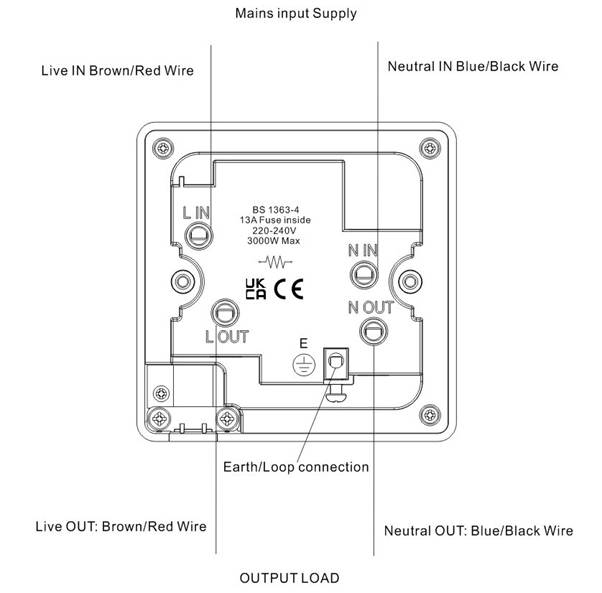
You can find further information on our website, including other blog articles at:
For any additional help and assistance, please do not hesitate to contact us.